Amazon Fire TV Stick / Fire TV Cube
Install the Downloader App
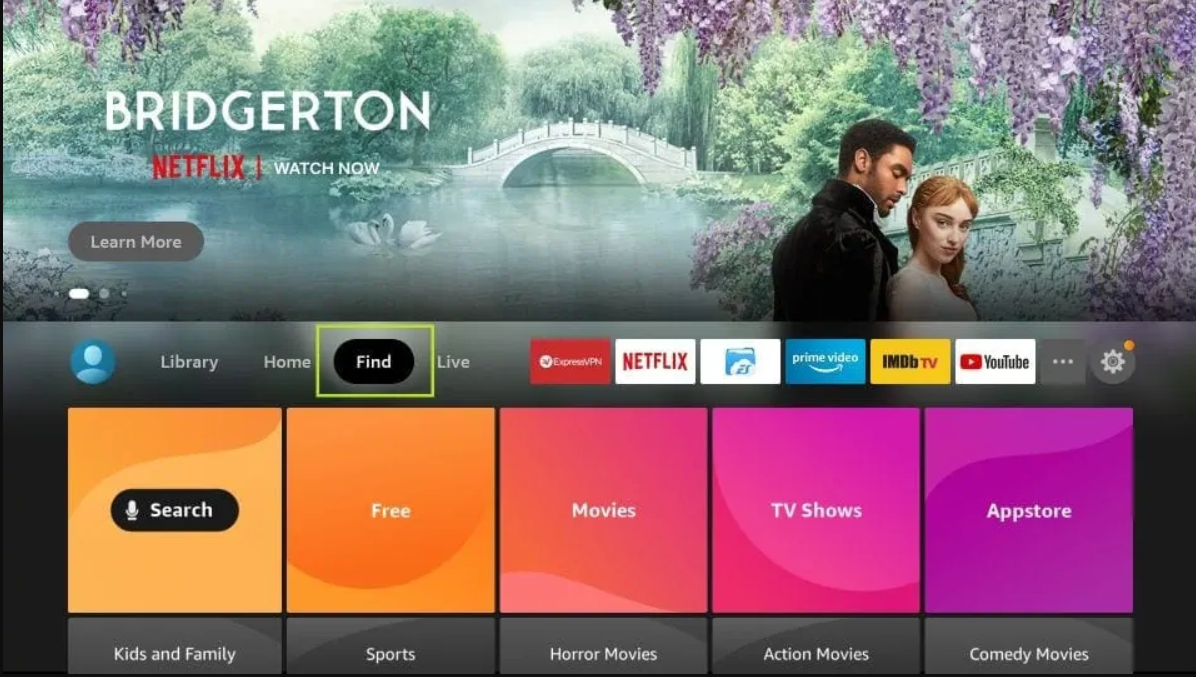
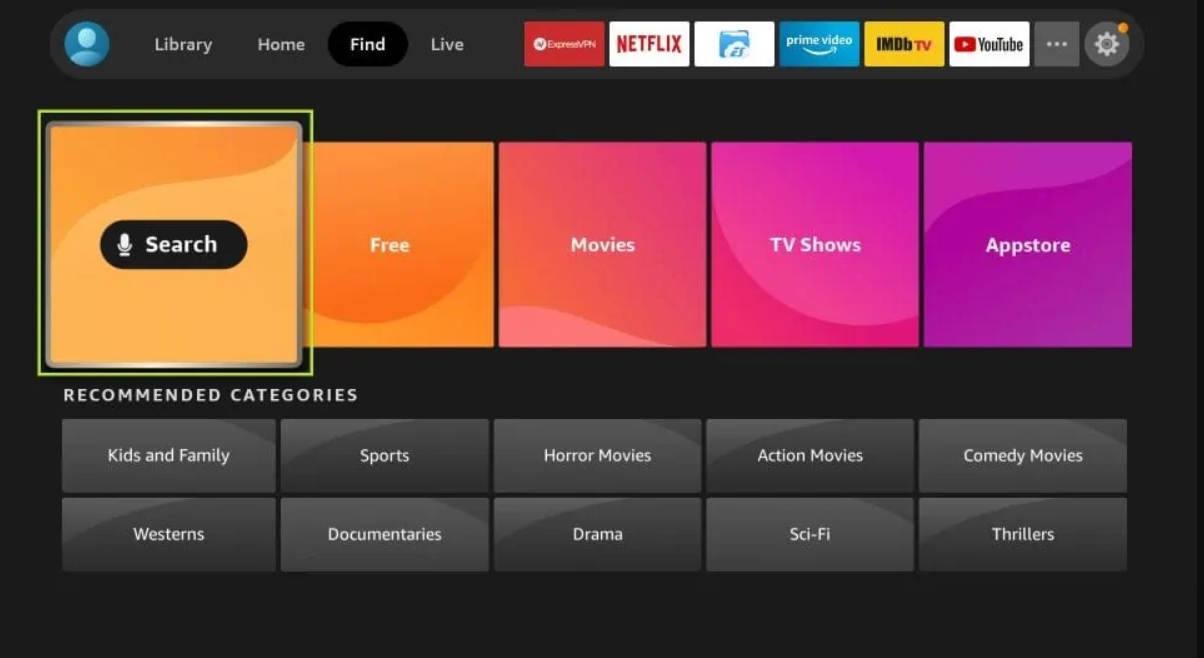
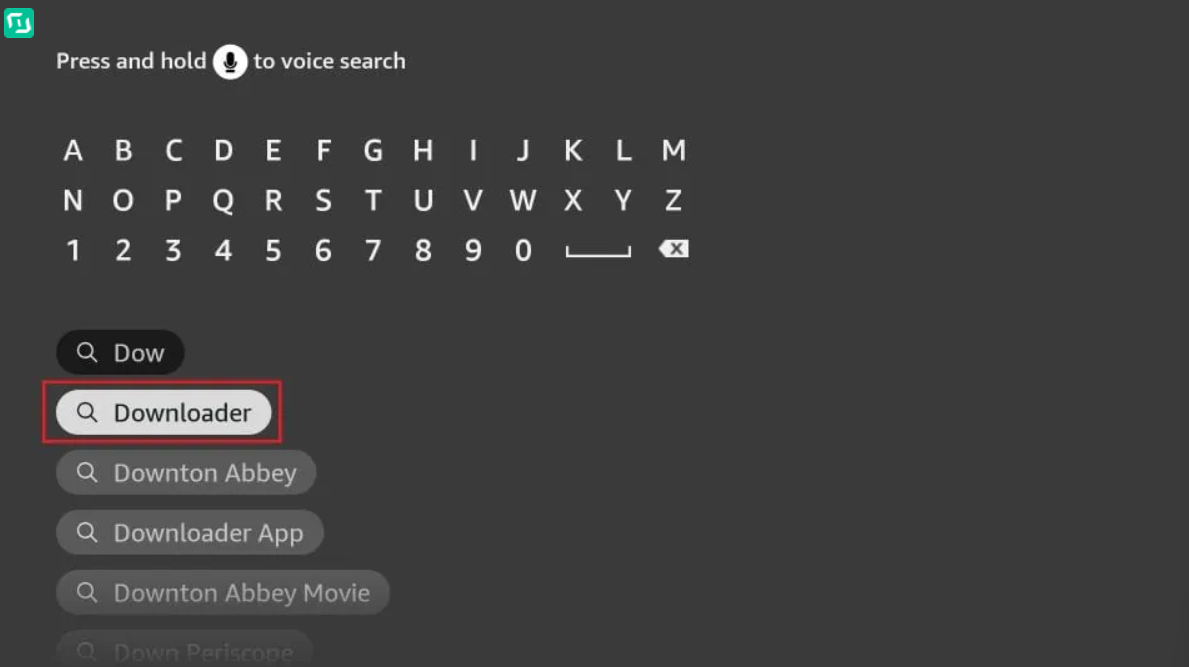
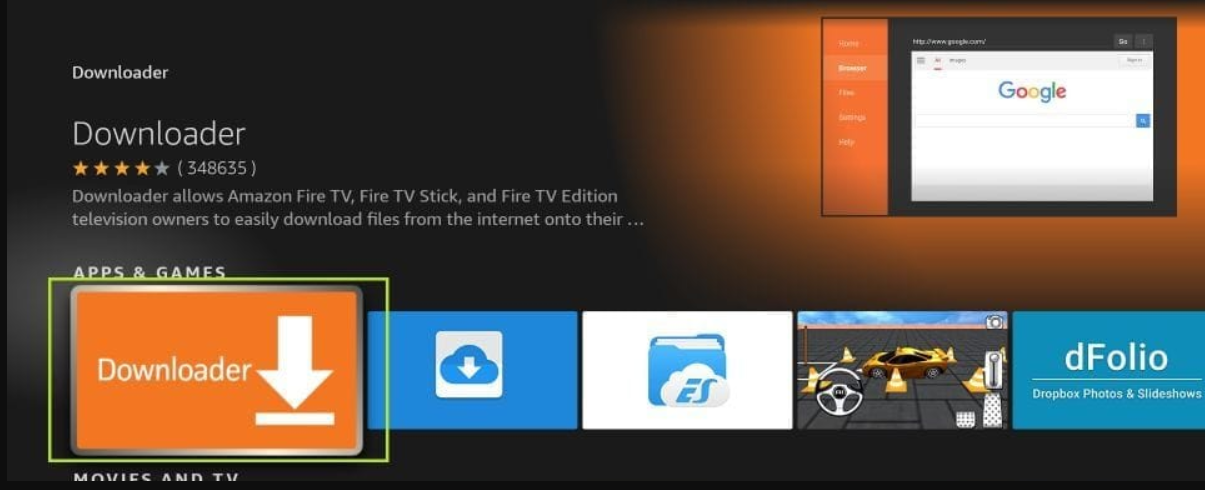
On your Fire TV, go to the Search icon and search for "Downloader". Install the app by AFTVnews from the Fire TV App Store.
Enable Developer Options
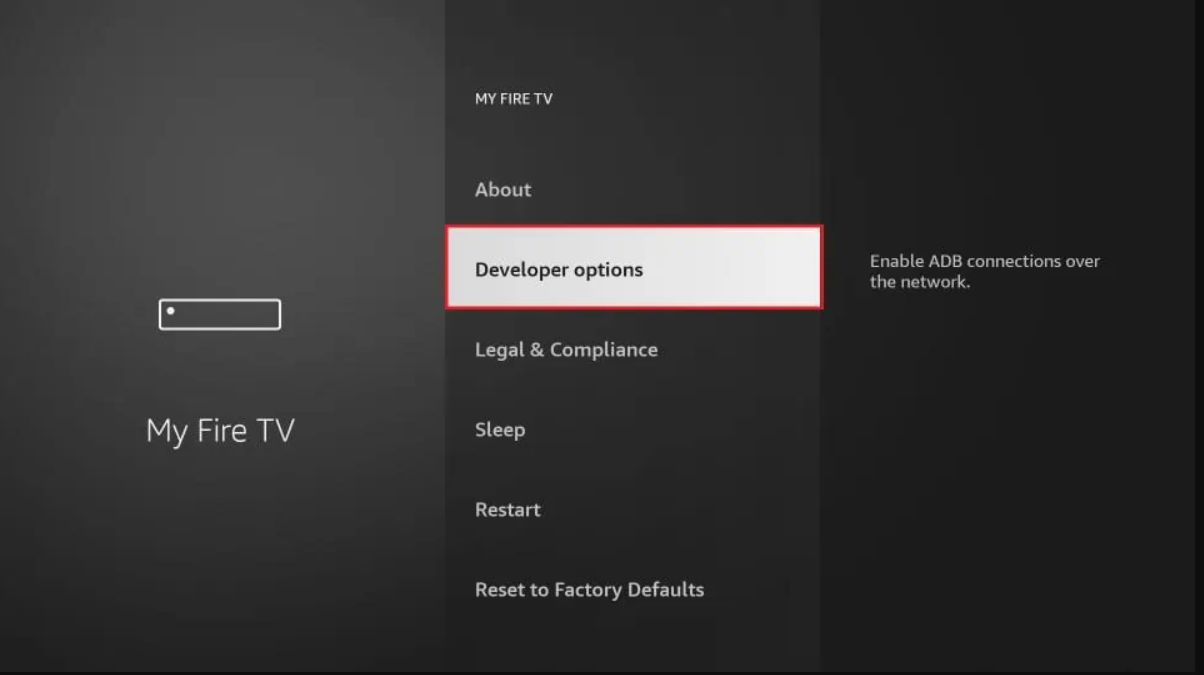
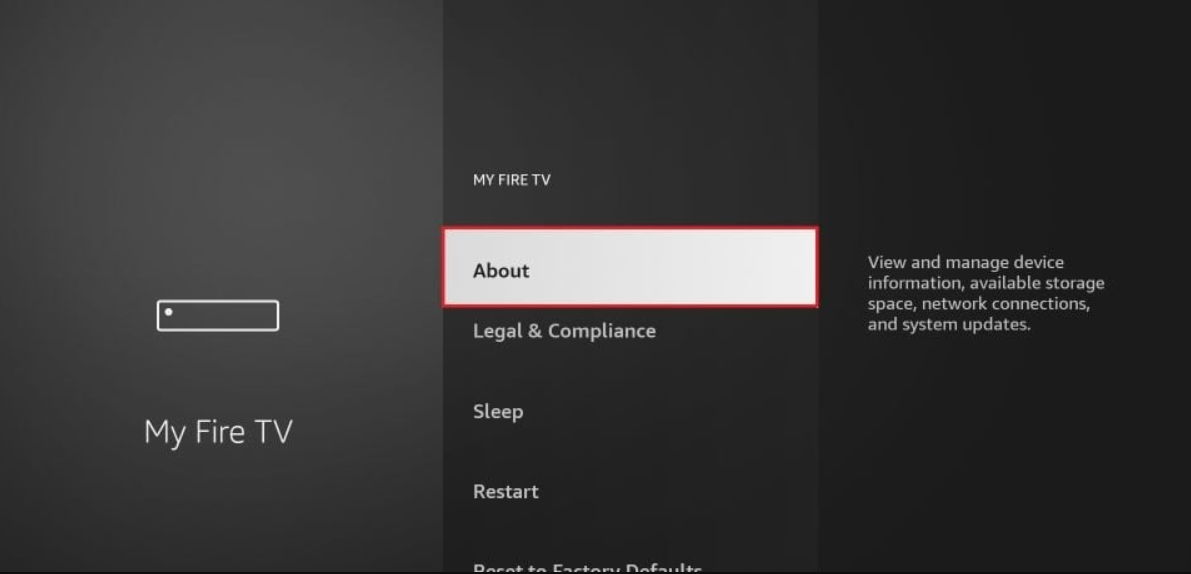
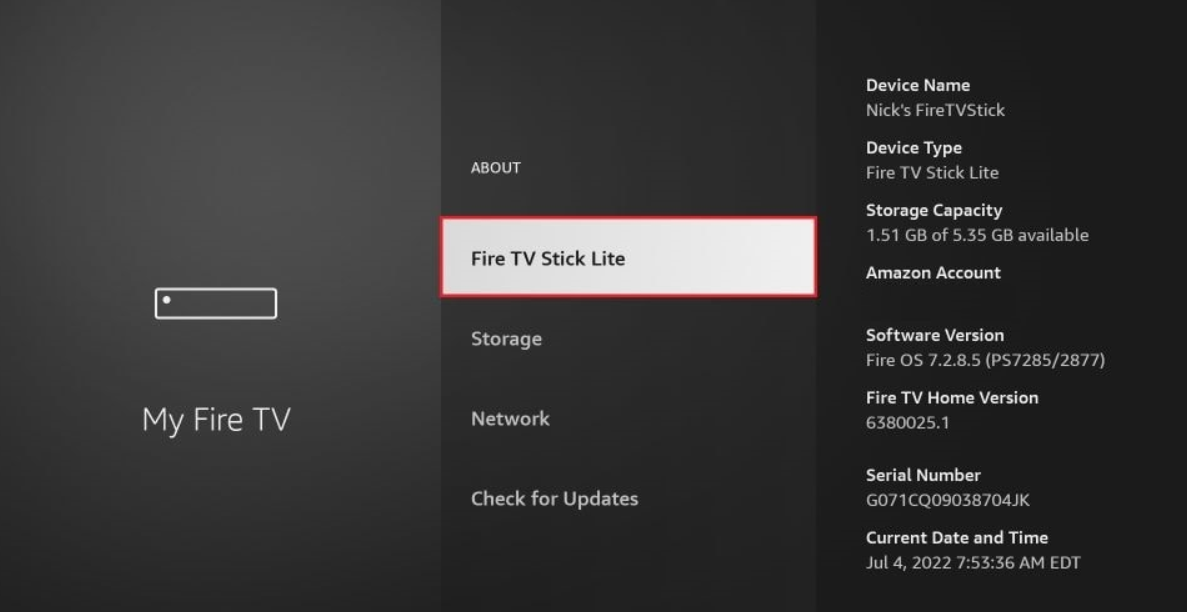
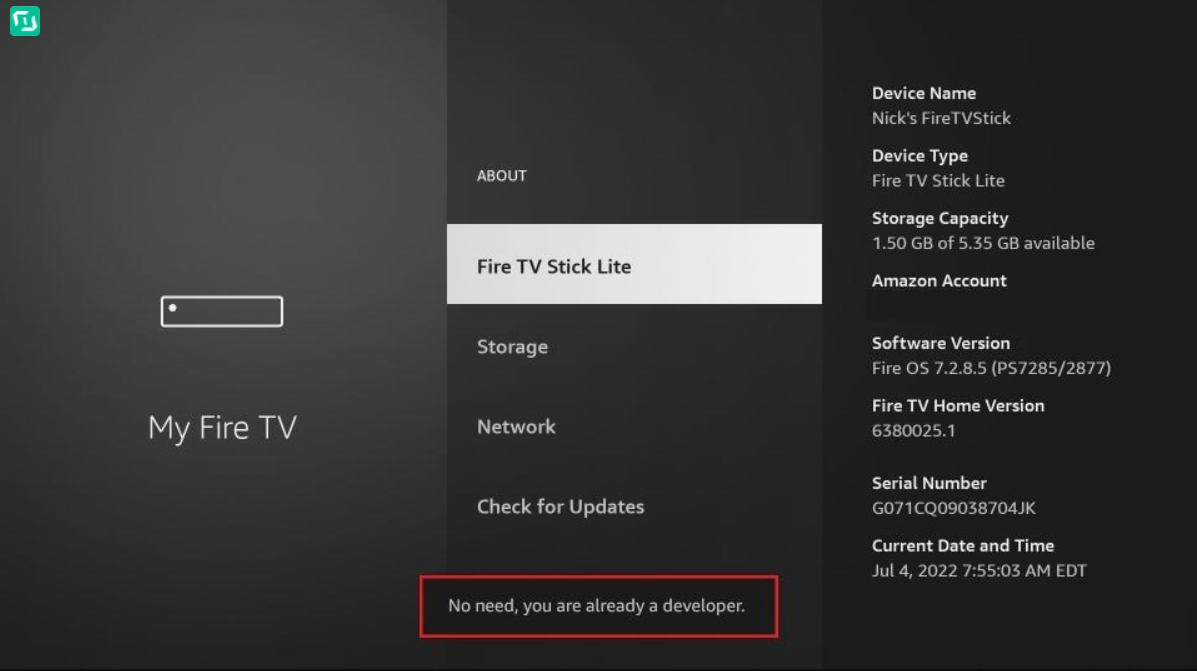
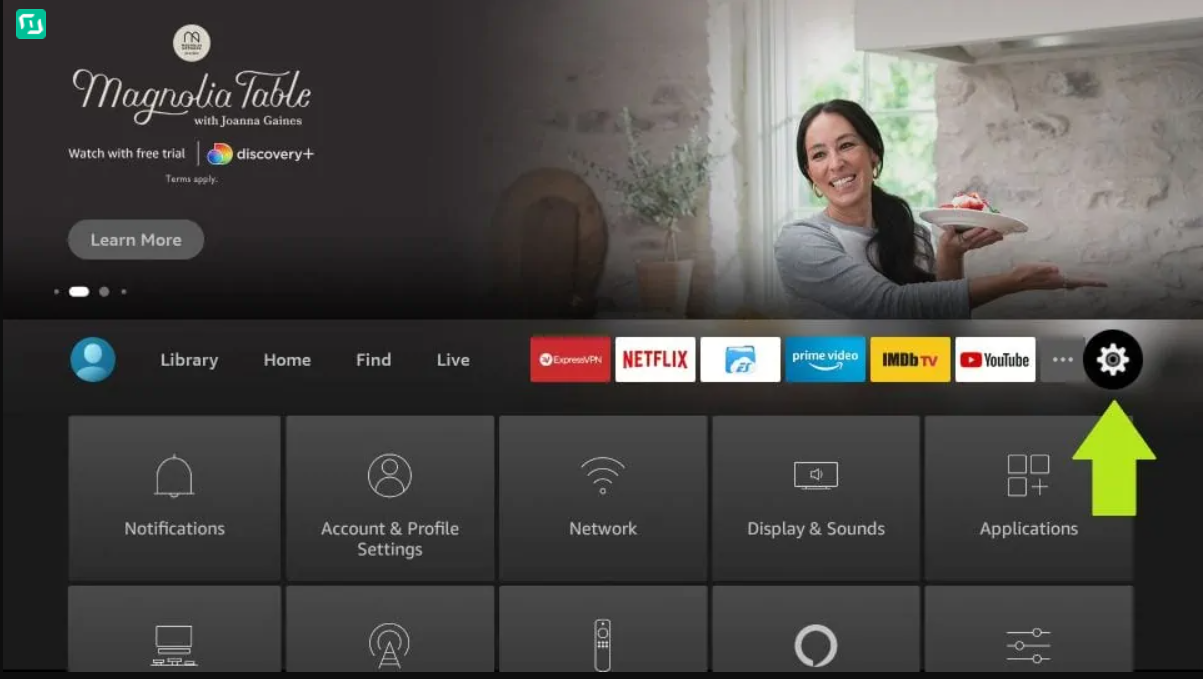
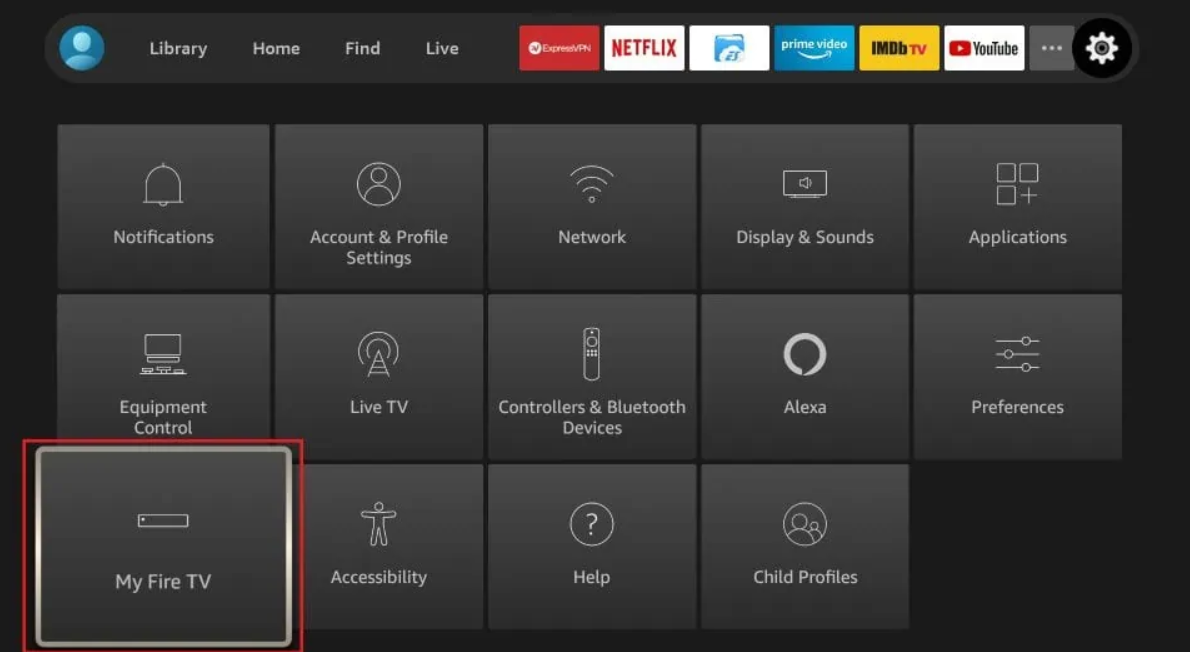
Navigate to Settings → My Fire TV → About. Tap "About" 7 times rapidly until you see a message confirming Developer Options are enabled.
Allow Installation of Unknown Apps
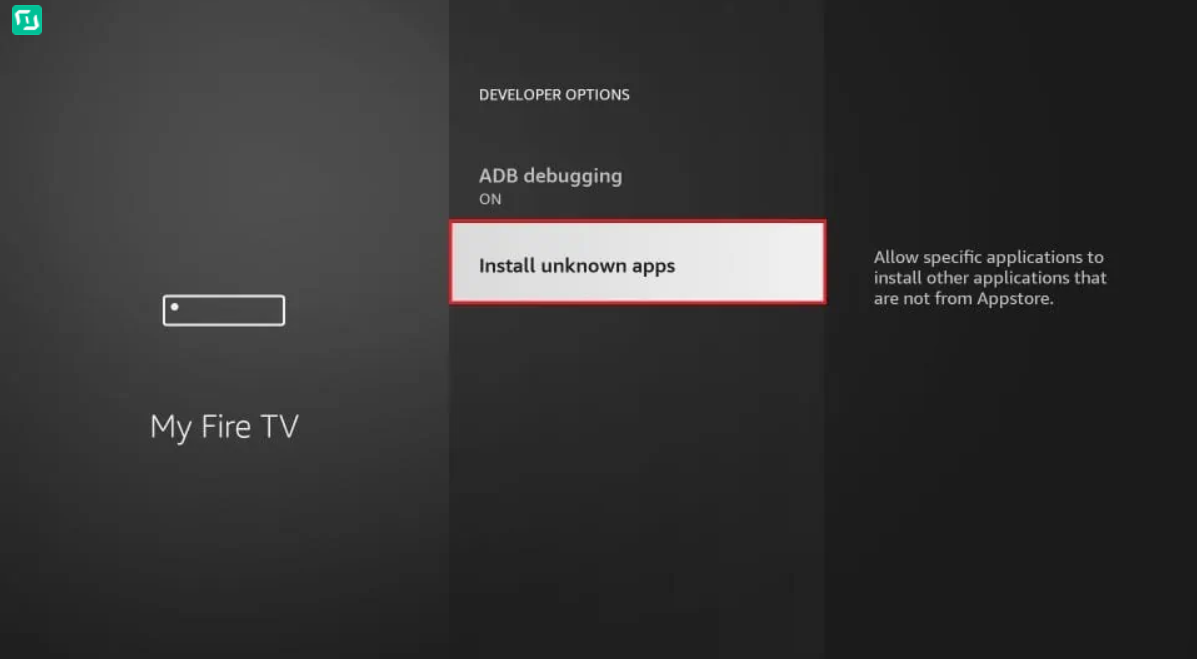
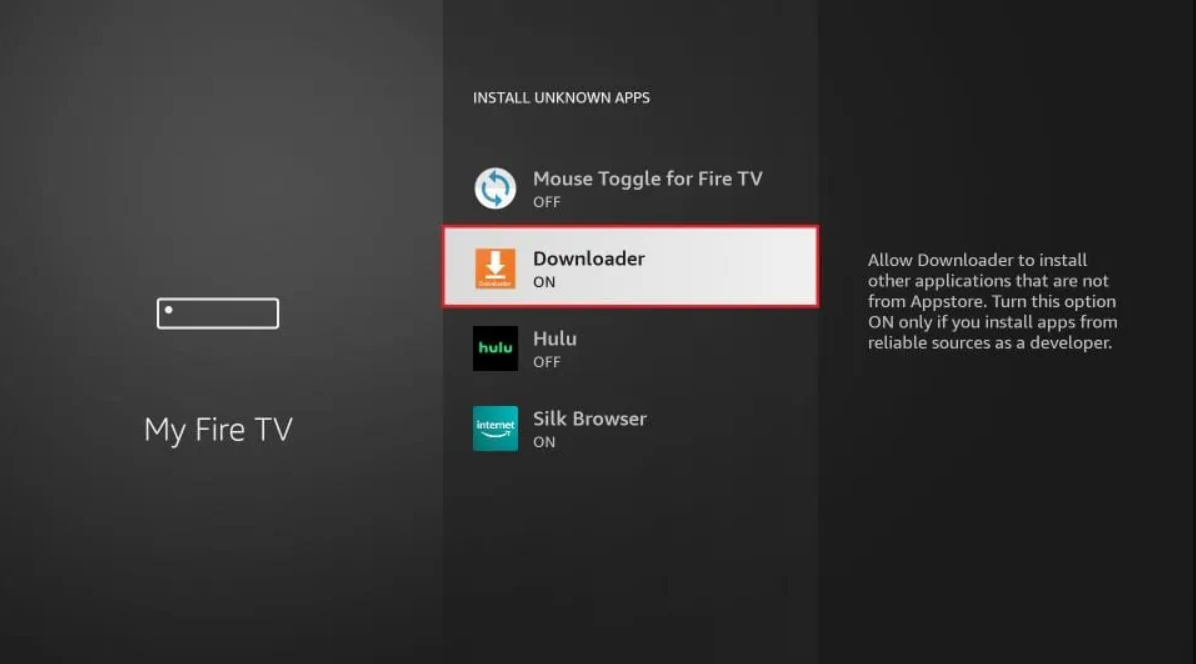
Go to Settings → My Fire TV → Developer Options. Find "Install Unknown Apps" and enable it for the Downloader app.
Download the IPTV Player
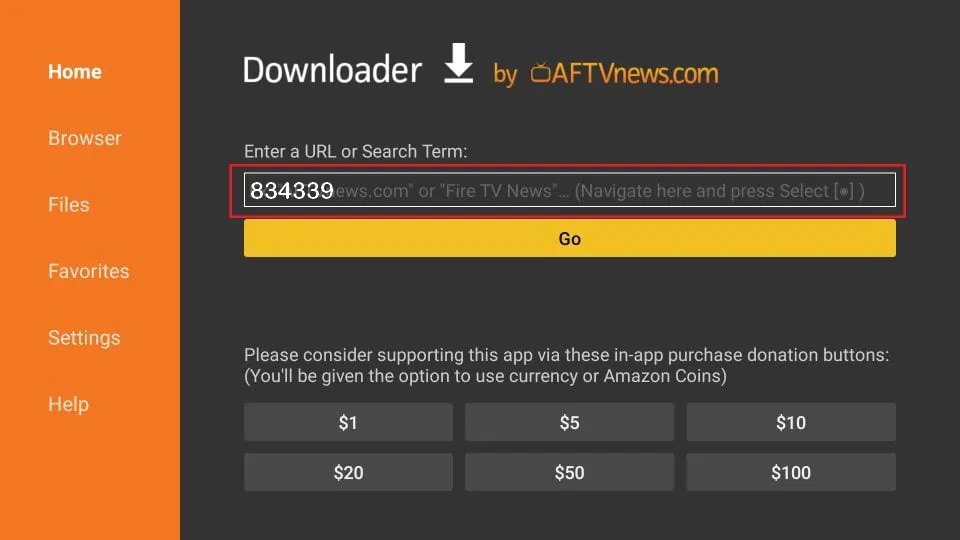
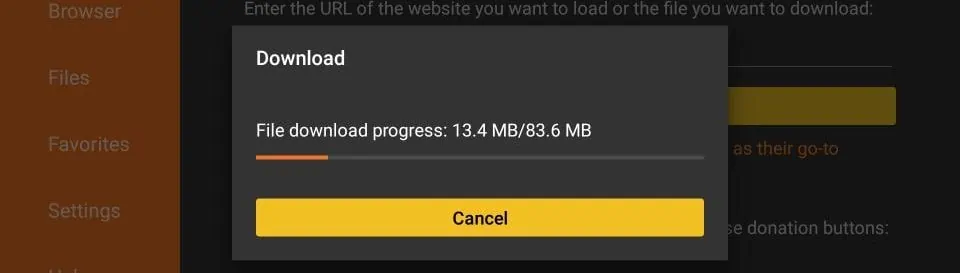
Open the Downloader app and enter the code 834339. Download and install the IPTV player app when prompted.
Connect Your Subscription
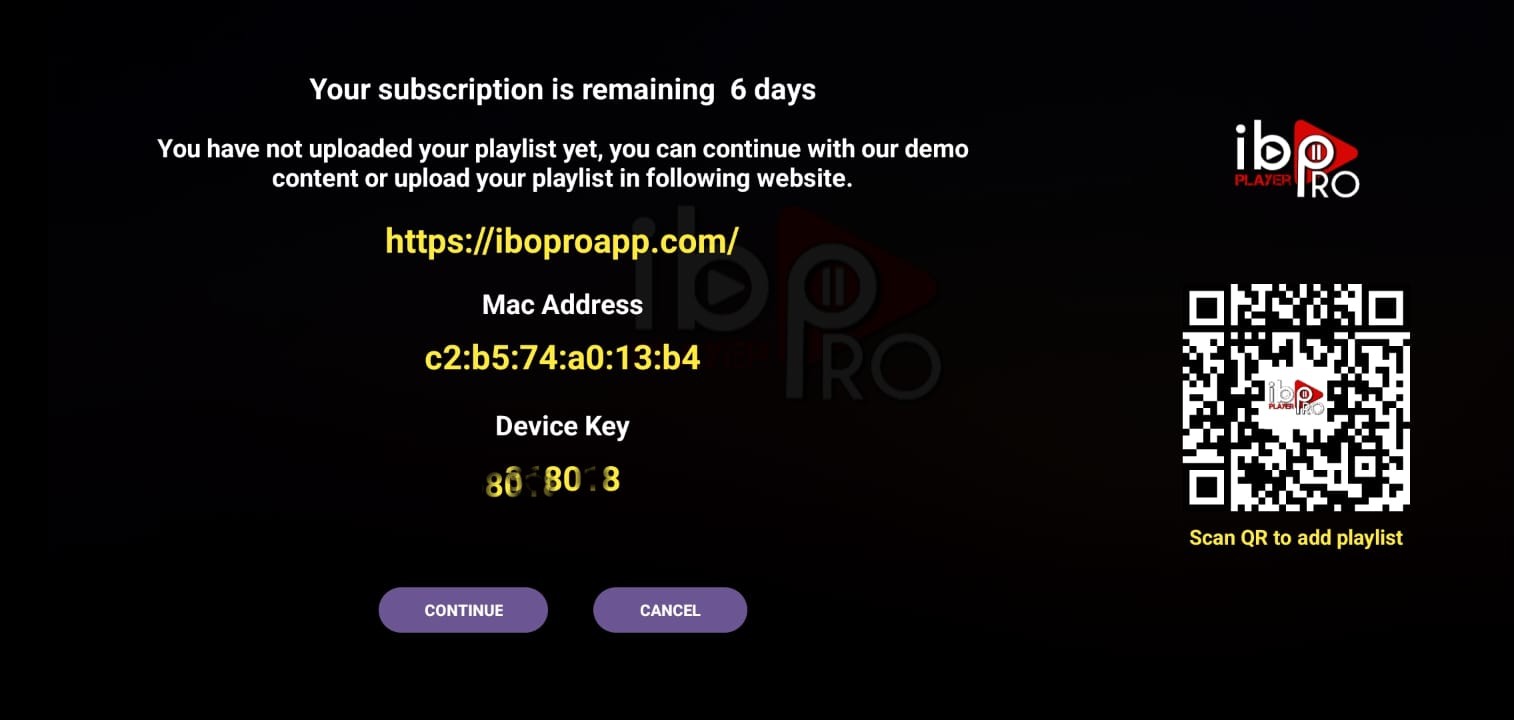
Open the app → Continue → Add Playlist → Xtream-Codes-API → Enter your server URL, username, and password (provided in your subscription email) → Save → Select your playlist → Connect.
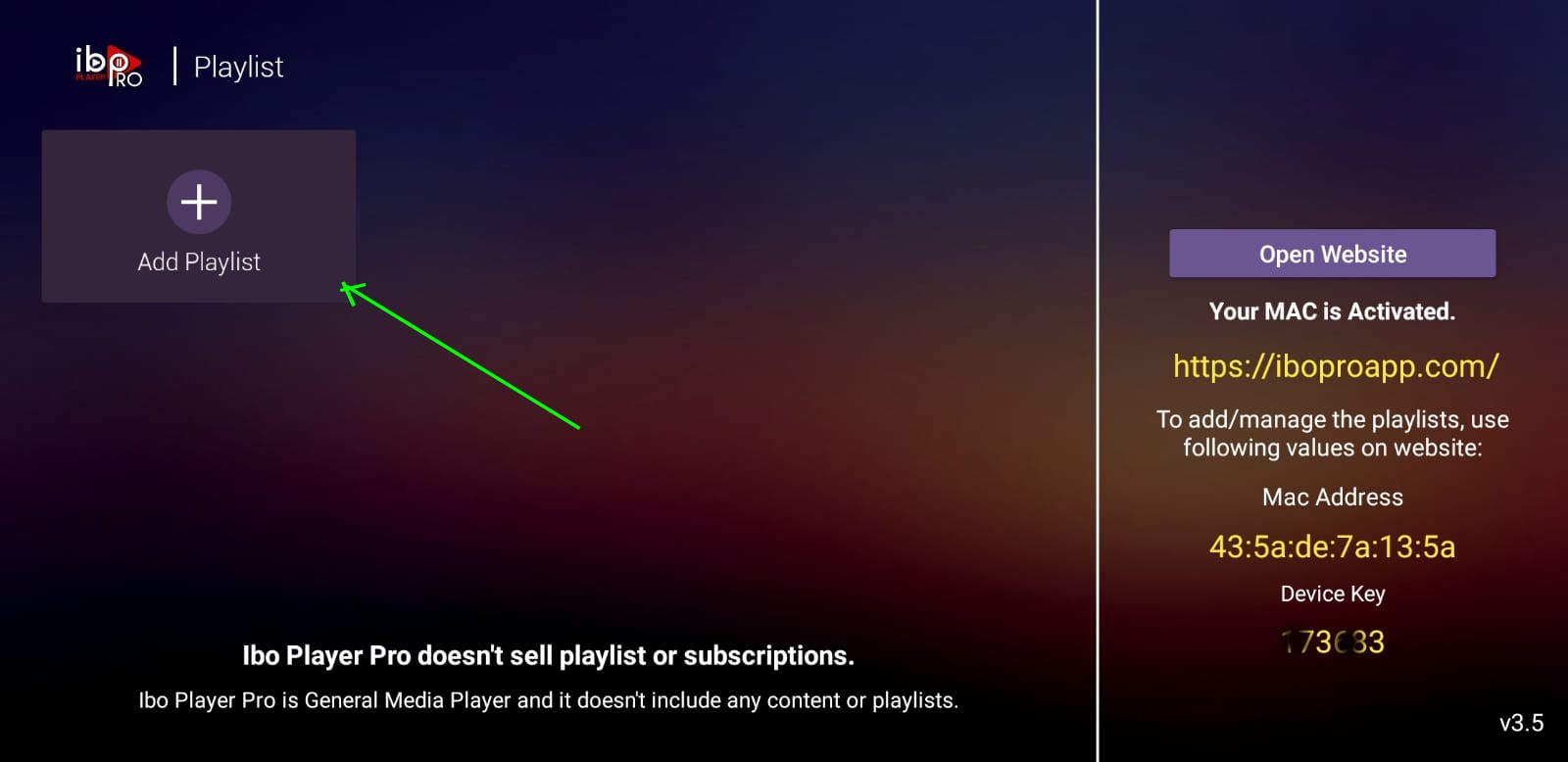
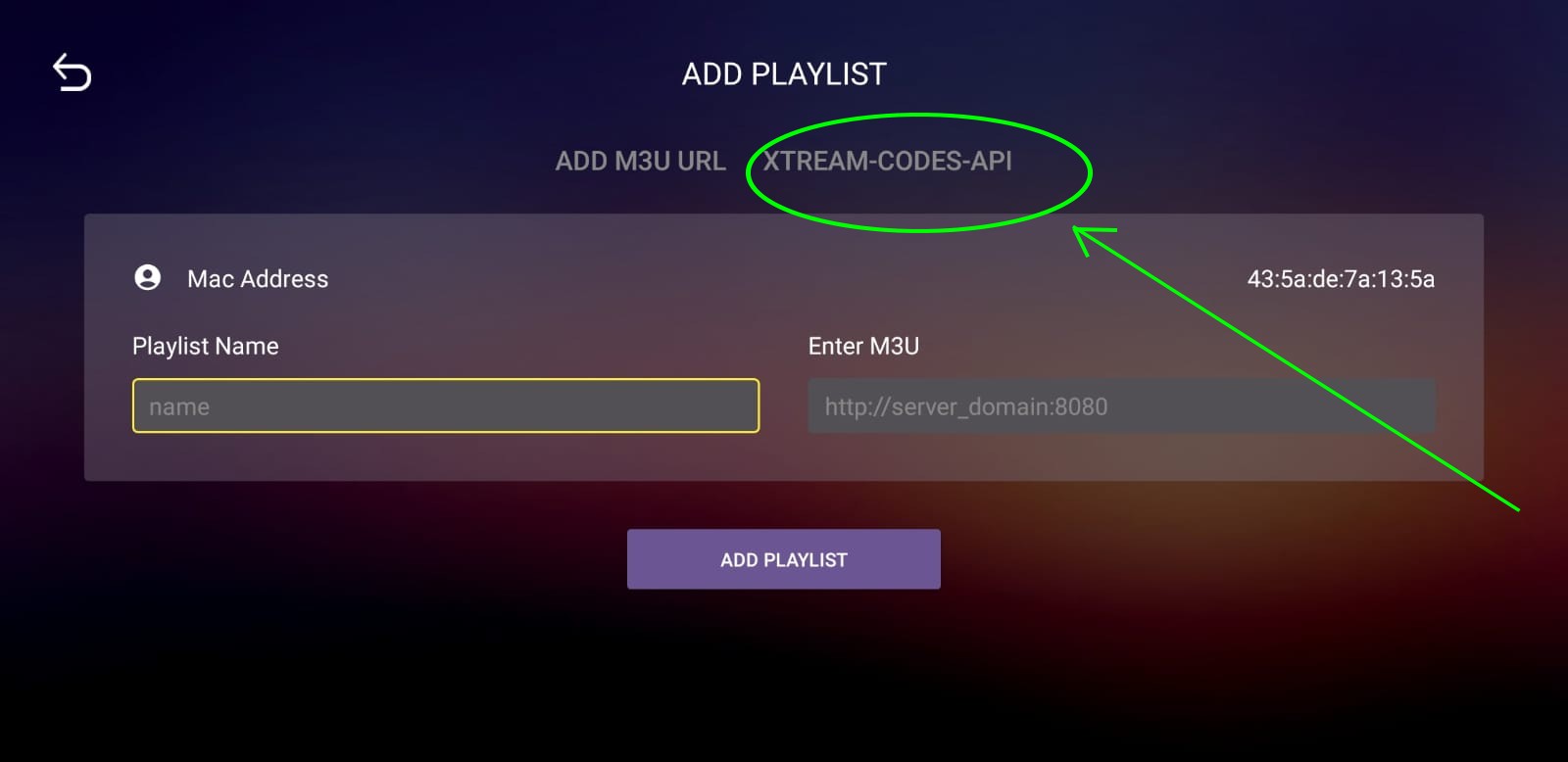
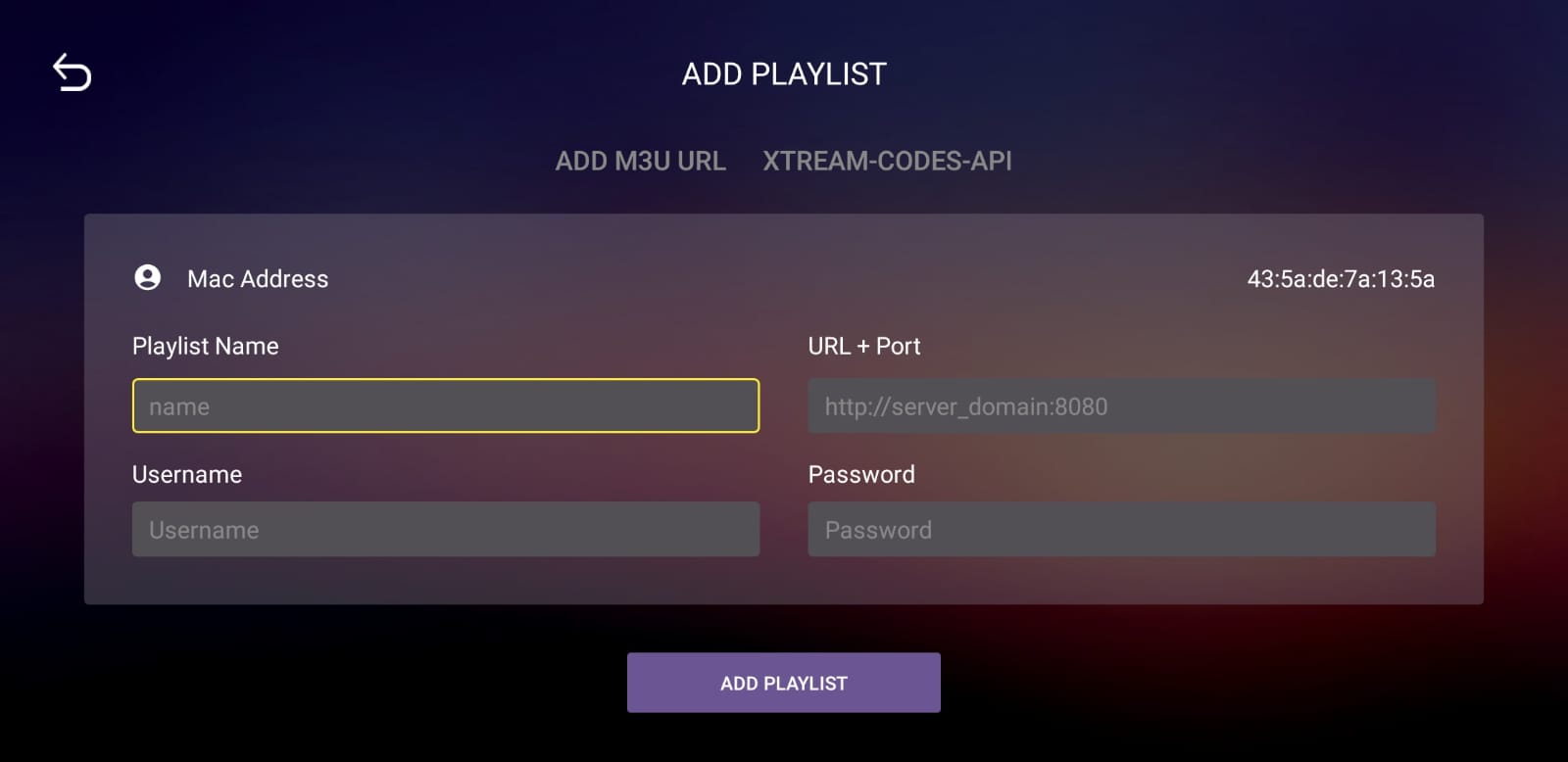
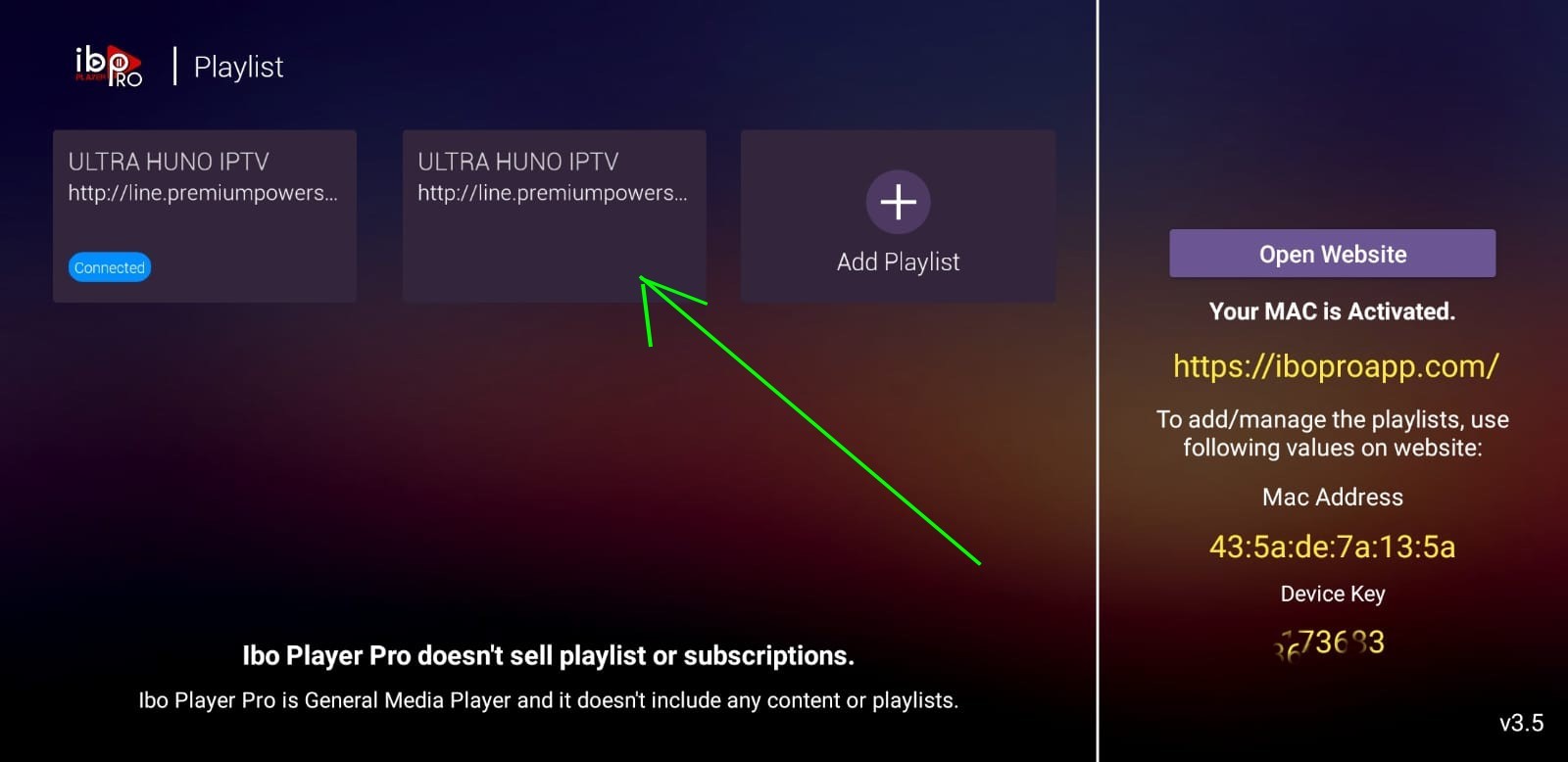
Send your MAC address and Device Key (both shown inside the app) to us at contact@tudiptv.com or WhatsApp +1 575-216-0354. Our team will handle the full setup for you.
Android BOX / TV Boxes
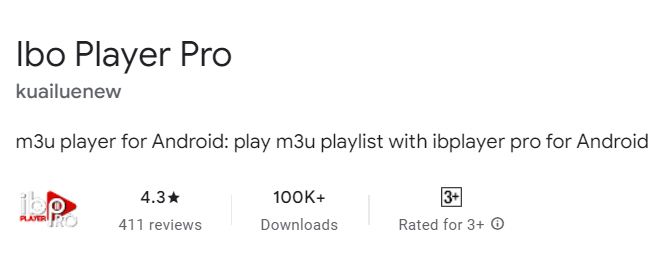
Install IBO Player Pro
Open the Google Play Store on your Android Box and search for "IBO Player Pro". Download and install the app.
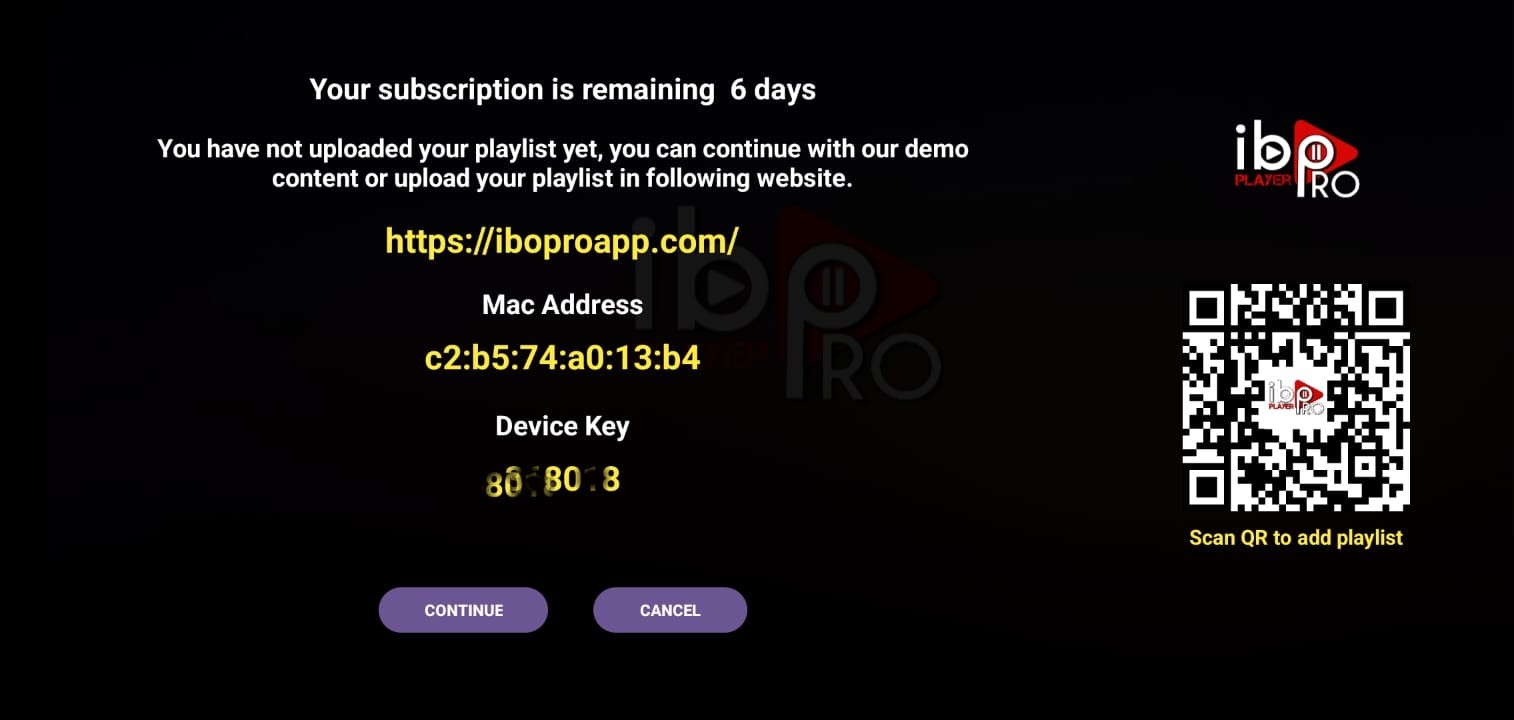
Connect Your Subscription
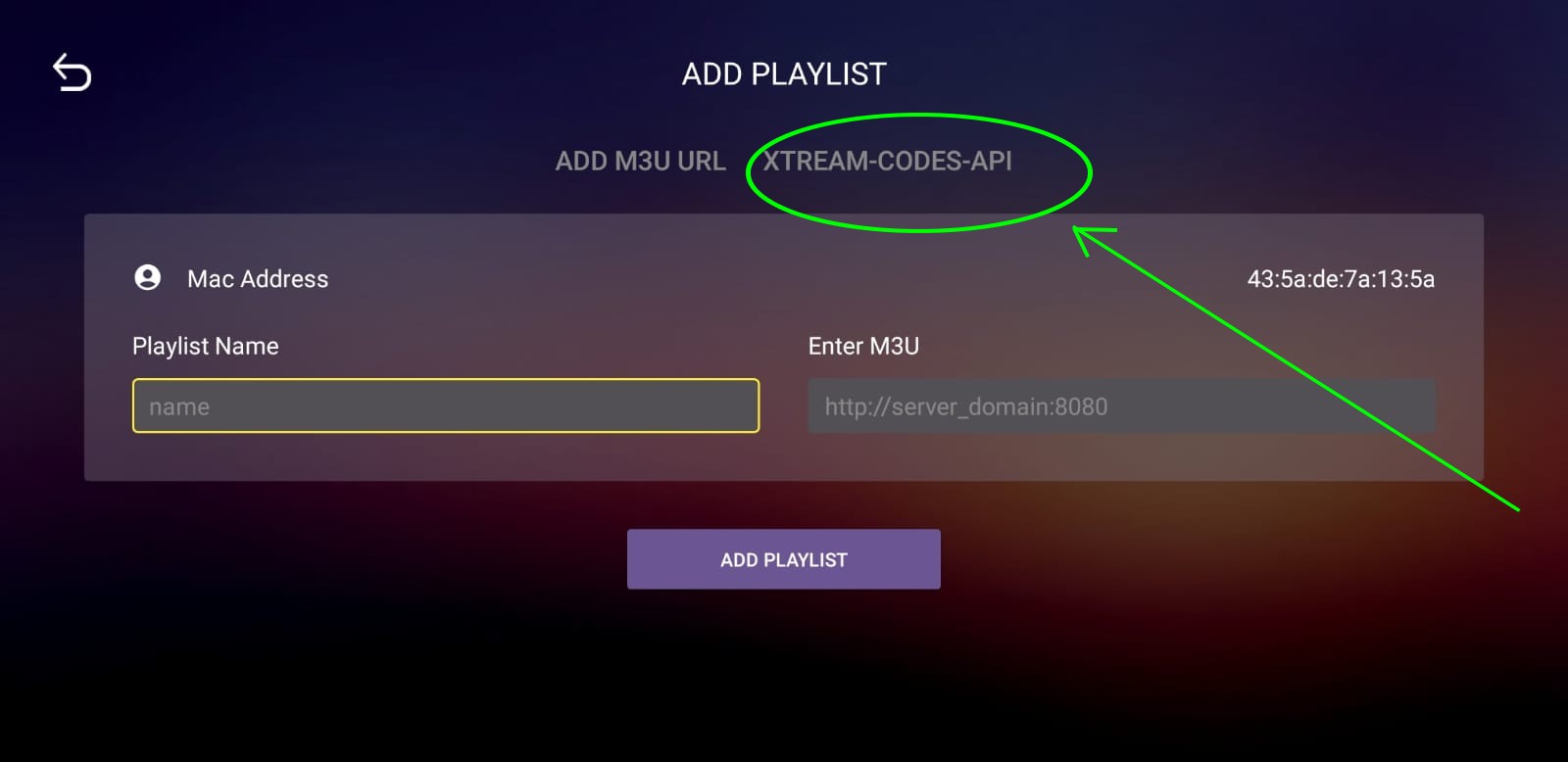
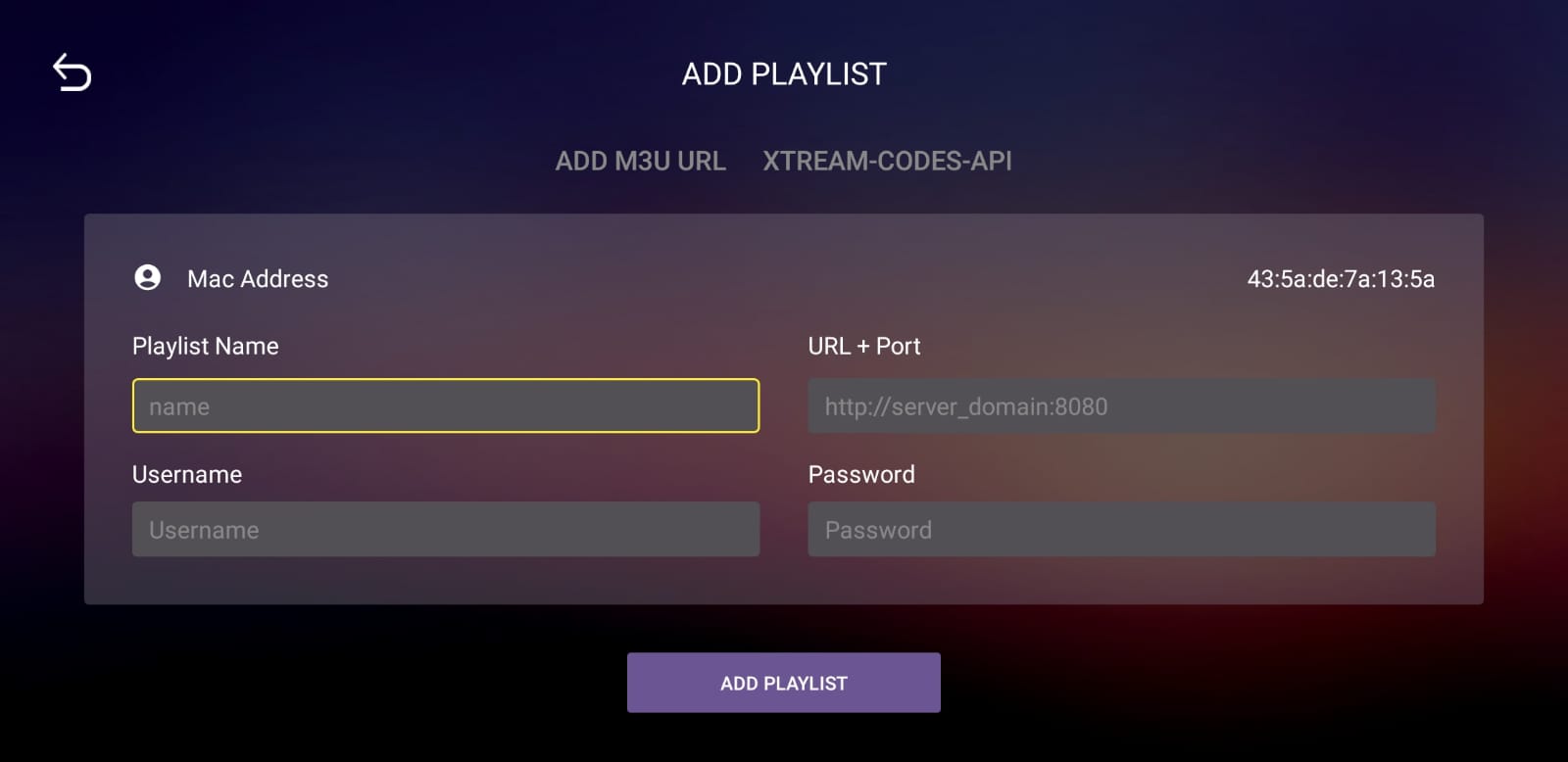
Open the app → Add Playlist → Xtream-Codes-API → Enter your server URL, username, and password from your subscription email → Save and connect.
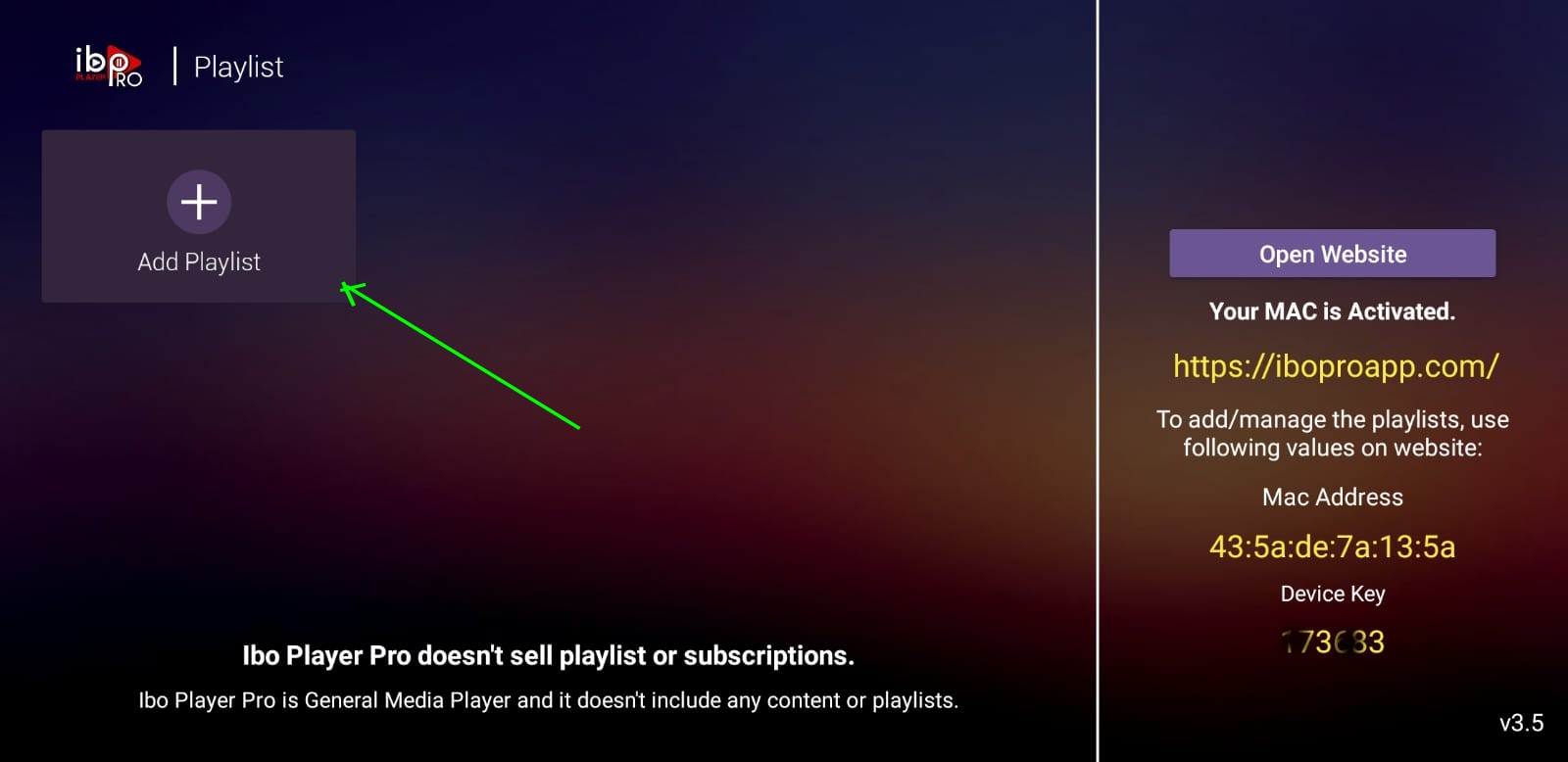
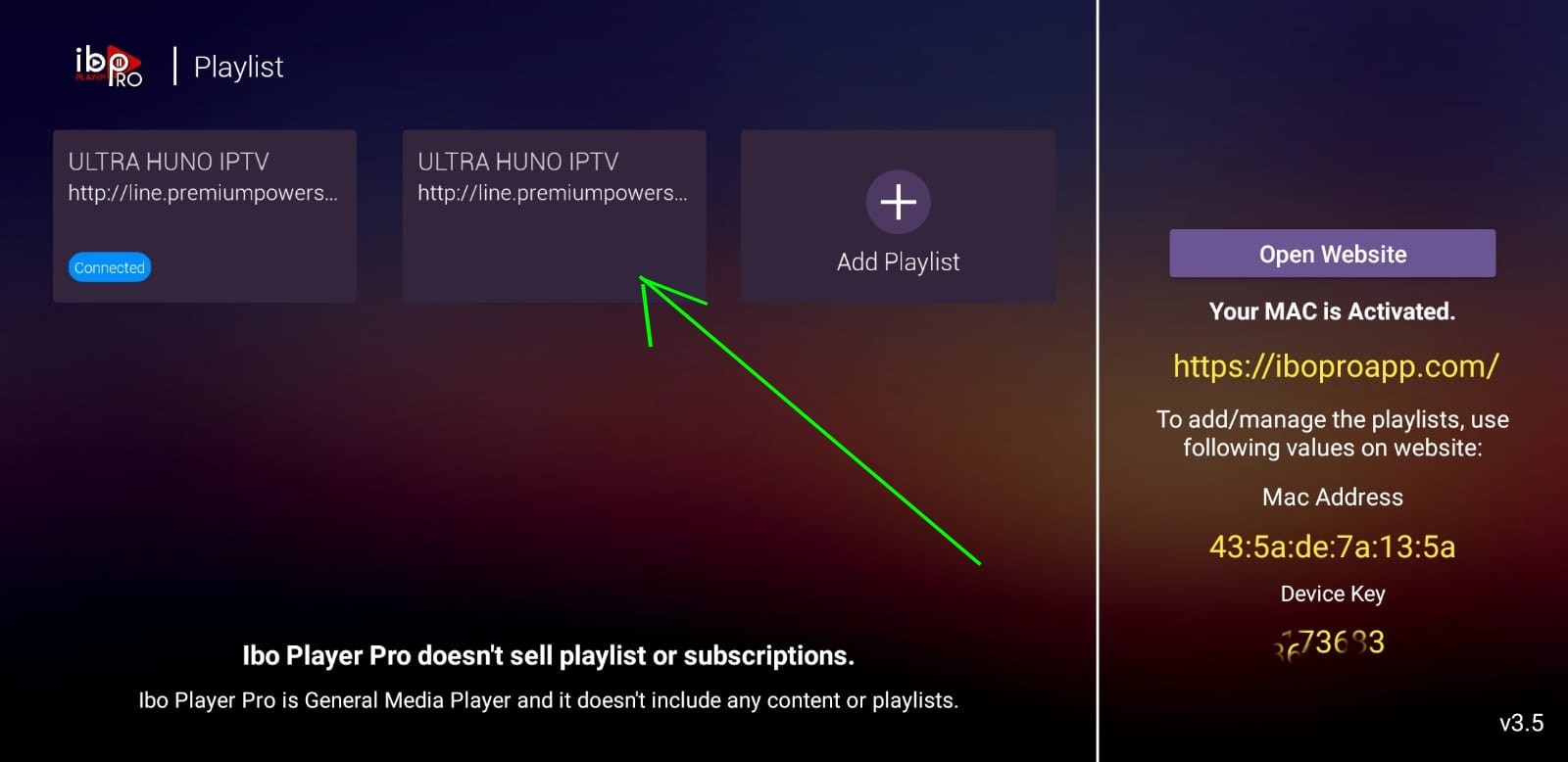
Send your MAC address and Device Key (displayed in the app) to contact@tudiptv.com or WhatsApp +1 575-216-0354 and our team will activate your device.
Smart TVs — Samsung & LG
Find IBO PLAYER in the App Store
Open the App Store / Smart Hub on your Samsung or LG TV. Search for "IBO PLAYER" and install it.
Open the App
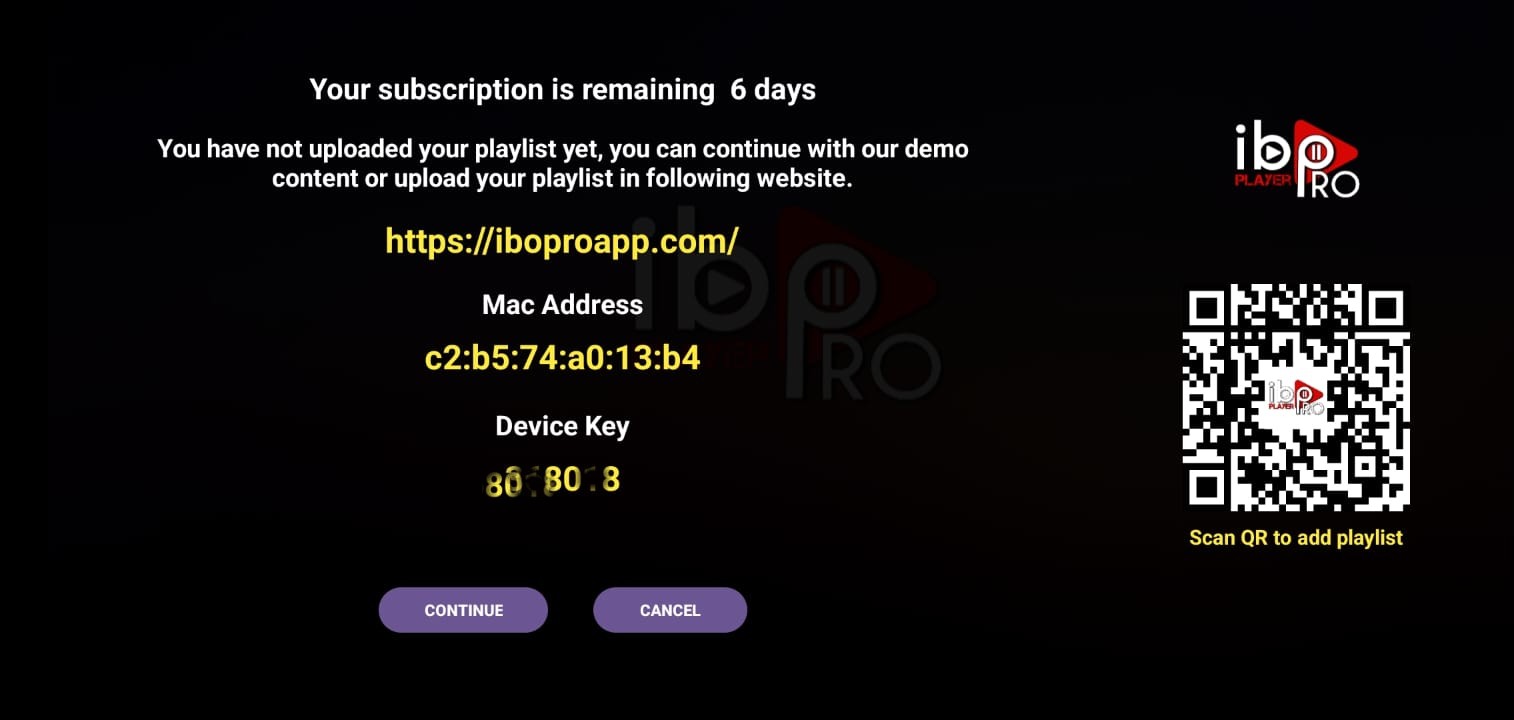
Launch IBO PLAYER. Note the MAC address and Device Key displayed on the screen.
Send Us Your Device Details
Send your MAC address and Device Key to contact@tudiptv.com or WhatsApp +1 575-216-0354. Our team will activate your subscription remotely.
Smart TVs — Hisense & Toshiba
Find SmartOne IPTV in the App Store
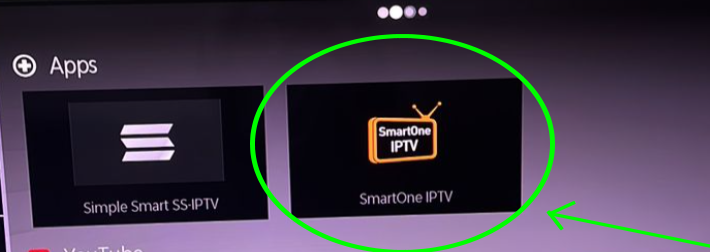
Open your TV's App Store and search for "SmartOne IPTV". Install the app.
Open the App
Launch SmartOne IPTV. Your MAC address will be displayed in red on the screen.
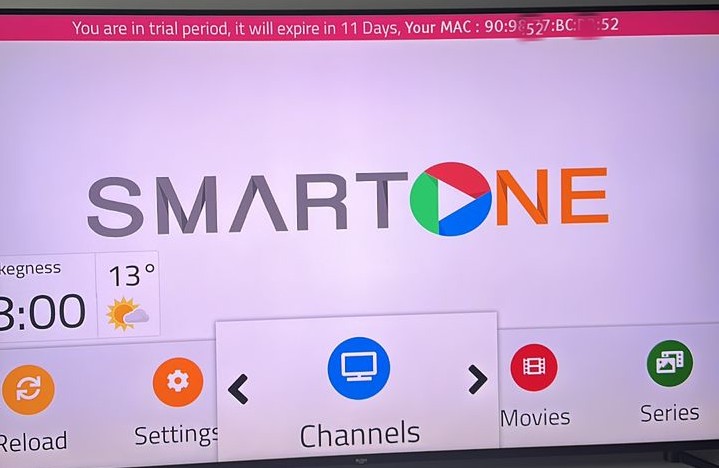
Send Us Your MAC Address
Send the MAC address to contact@tudiptv.com or WhatsApp +1 575-216-0354. We will activate your device and provide the portal URL.
Smart TVs — Android TVs, Sony & More
Install IBO Player Pro
Open the Google Play Store on your Android TV or Sony TV and search for "IBO Player Pro". Install the app.
Connect Your Subscription
Open the app → Add Playlist → Xtream-Codes-API → Enter your server URL, username, and password from your subscription email → Save and connect.
Send your MAC address and Device Key to contact@tudiptv.com or WhatsApp +1 575-216-0354. Our team will handle activation for you.
Apple TV & Apple Box
Install IBO PLAYER from the App Store
On your Apple TV, go to the App Store and search for "IBO PLAYER". Download and install it.
Open the App
Launch IBO PLAYER and note the MAC address and Device Key shown on the welcome screen.
Send Us Your Device Details
Email or WhatsApp us your MAC address and Device Key at contact@tudiptv.com or +1 575-216-0354. Our team will activate your TUD IPTV subscription on your device.
Other Smart TVs
Compatible Apps
TUD IPTV is compatible with a wide range of IPTV apps. Choose one from the list below that is available on your TV's App Store:
Share Your MAC Address
Open your chosen app and find the MAC address displayed on screen. Send it to us at contact@tudiptv.com or WhatsApp +1 575-216-0354.
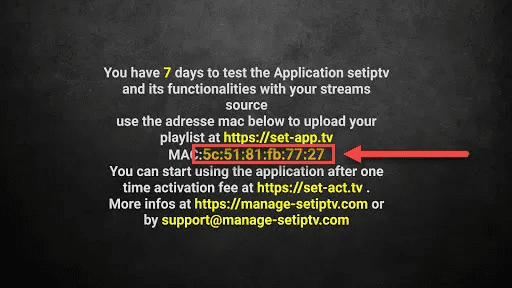
We Activate Your Device
Our team will activate your device and send you the portal URL needed to complete setup. You will be watching TUD IPTV in no time.
MAG Boxes & STB (Set-Top Boxes)
Boot Your MAG Box
Power on your MAG Box and wait for it to fully load to the home or portal screen.
Open Settings
Navigate to Settings from the main menu using your remote.
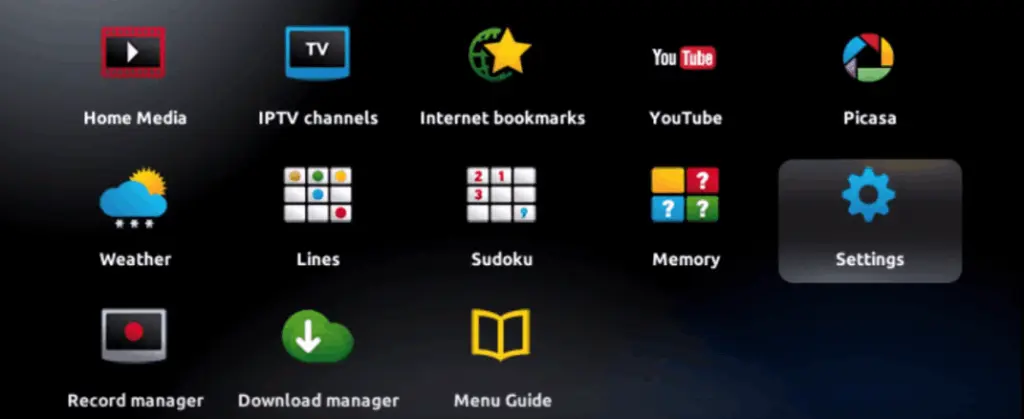
Go to System Settings
Select System Settings from the Settings menu.
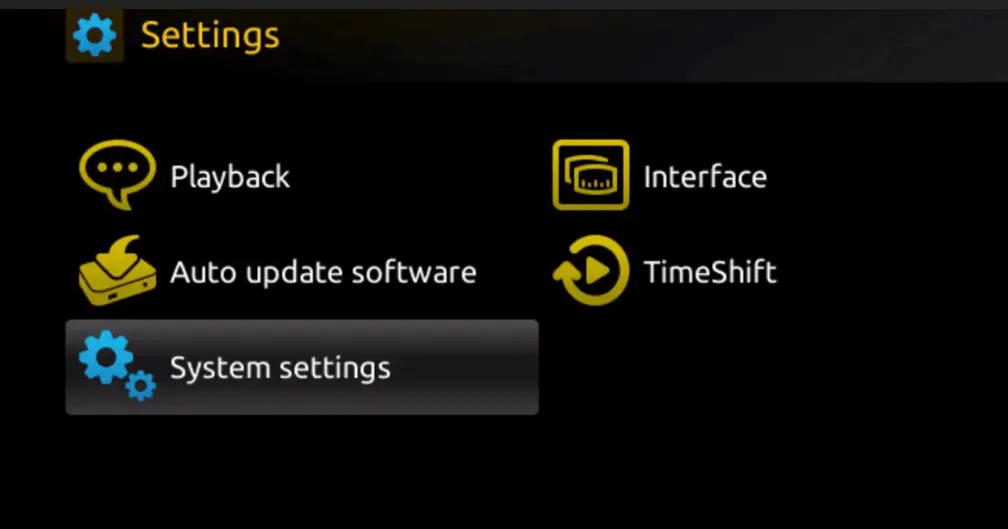
Open Servers
Select Servers within System Settings.
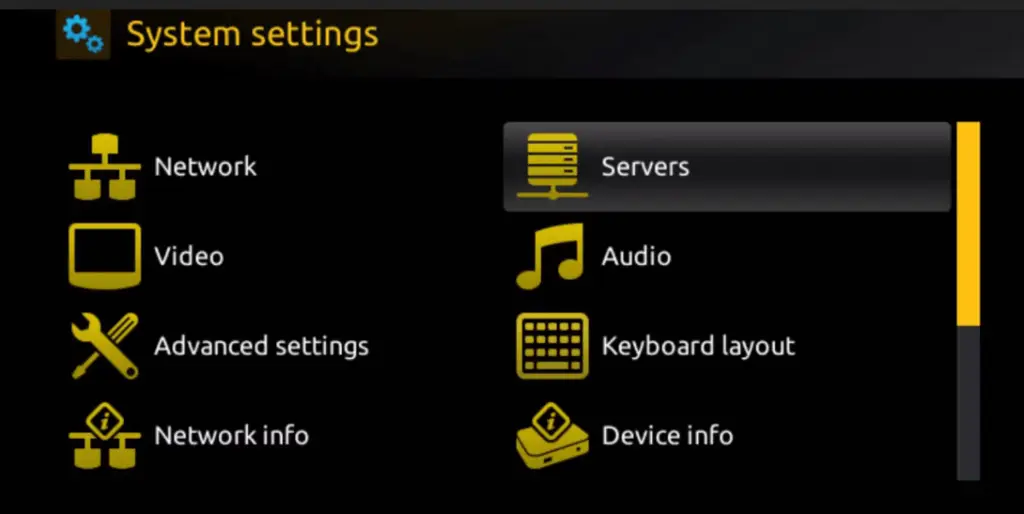
Select Portals
Choose Portals from the Servers submenu.
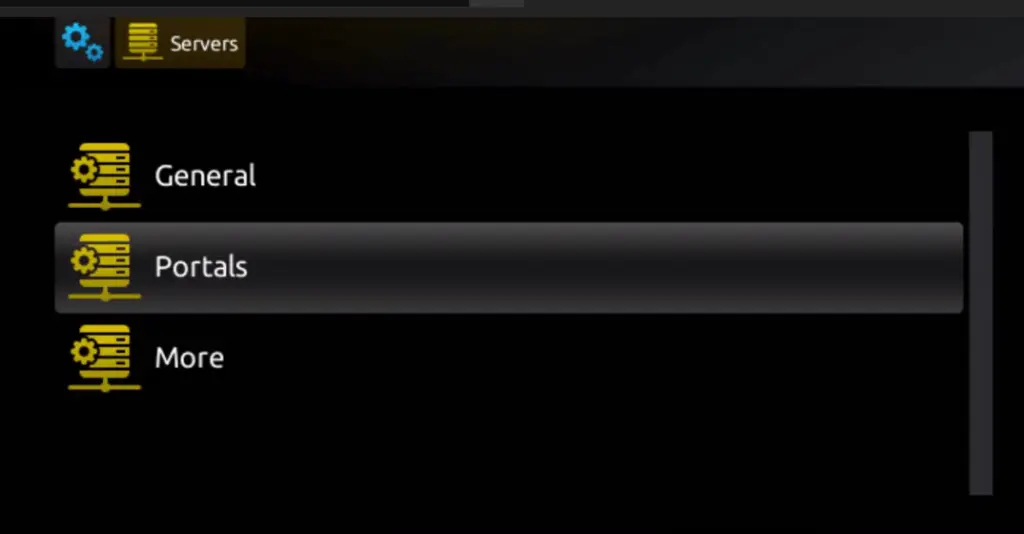
Enter Portal Details
In Portal 1 Name, enter TUD IPTV. In Portal 1 URL, enter the portal URL provided by our team. Press OK to confirm.
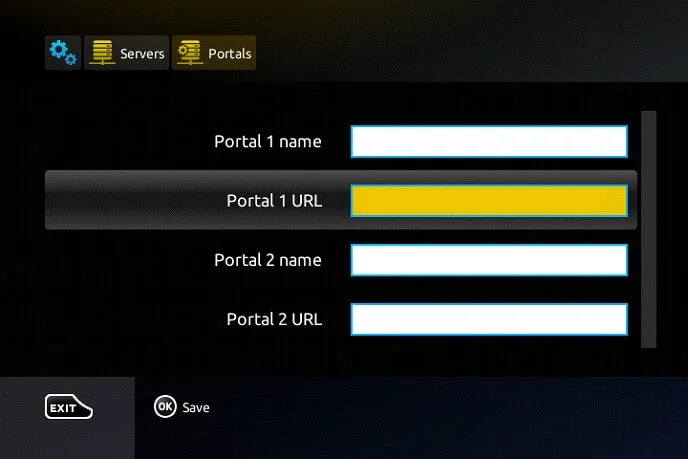
Exit and Reboot
Press EXIT to close settings, then Reboot your MAG Box. It will connect to the TUD IPTV portal on startup.
Send Us Your MAC Address
Find your MAC address on the label on the back of the box. Send it to contact@tudiptv.com or WhatsApp +1 575-216-0354 to receive your portal URL and activation.
Android Smartphones & Tablets
Download the TUD IPTV App
A download link for the TUD IPTV app will be provided in your subscription confirmation email. Tap the link on your Android device to download and install the app.
Select Your Device Type
Open the app and select "Mobile" for a smartphone or "Tablet" depending on your device type.
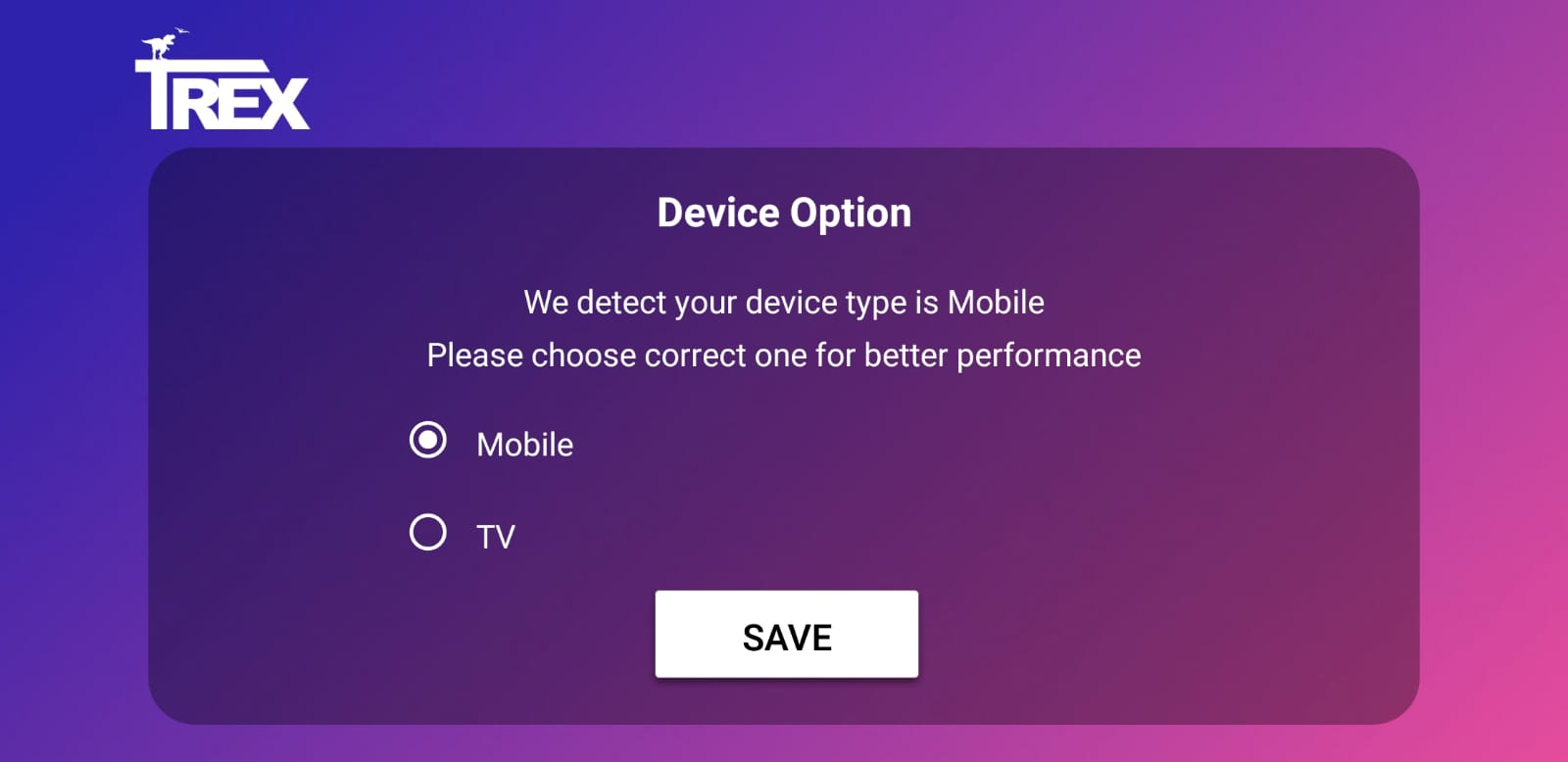
Enter Your Credentials
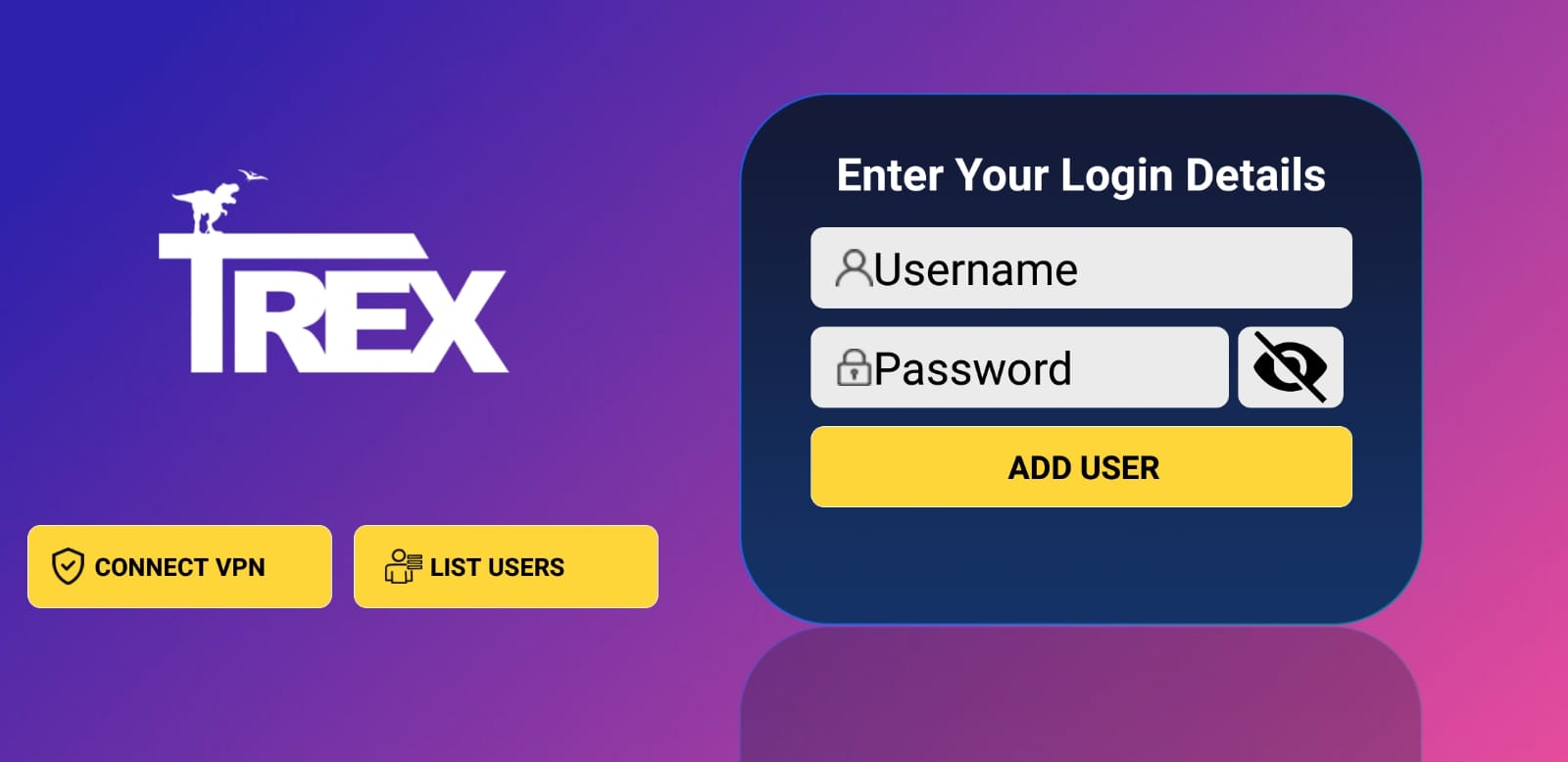
Enter the username and password provided in your TUD IPTV subscription email. Tap Login to start streaming.
iOS Phones & iPads (iPhone / iPad)
Install Smarters Player Lite
Open the Apple App Store on your iPhone or iPad. Search for "Smarters Player Lite" and install the app.
Select Login Method
Open the app and choose "Login With Xtream Codes API" from the login options.
Enter Your Credentials
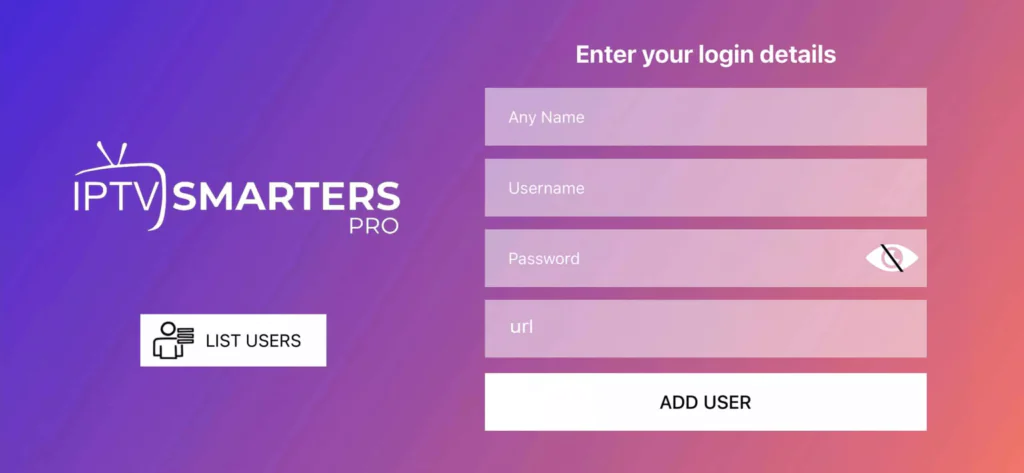
Enter the username, password, and server URL from your TUD IPTV subscription email. Tap ADD USER and wait for the playlist to load.
Start Watching
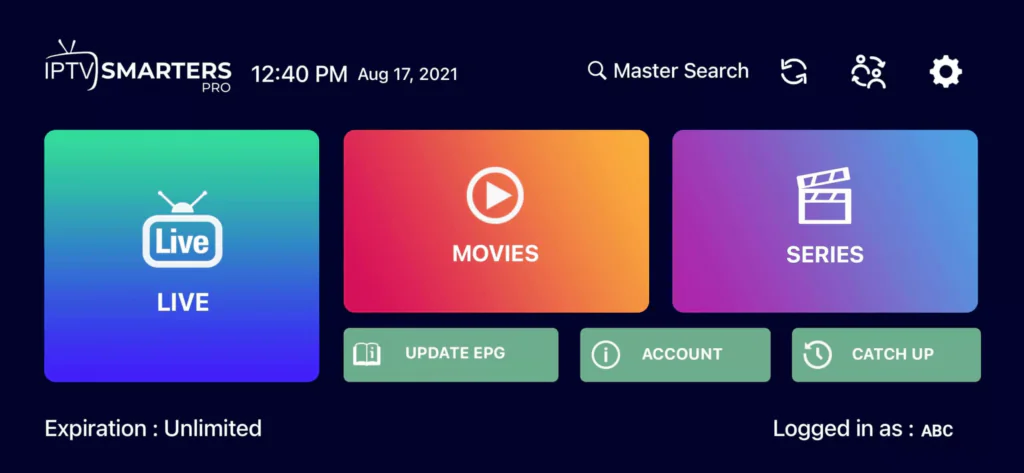
Tap the Live TV icon to browse channels. Select a channel group, then a channel. Double-tap the screen to enter fullscreen mode.
Install the Electronic Program Guide (EPG)
Tap "Install EPG" inside the app. No URL is required — the guide will load automatically and display program schedules for your channels.
Windows PC or Laptop
Download the TUD IPTV Windows App
A download link for the Windows app will be provided in your TUD IPTV subscription email. Click the link on your Windows PC or laptop to download the installer.
Install the Application
Open the downloaded installer file and follow the on-screen prompts to complete the installation.
Login and Start Watching
Launch the TUD IPTV app, enter your username and password from your subscription email, and start enjoying your channels.
macOS (MacBook & Mac)
Download the TUD IPTV Mac App
Your TUD IPTV subscription email includes a download link for the macOS app. Click the link on your Mac to download it.
Install the Application
Open the downloaded file (usually a .dmg package), drag the app to your Applications folder, and launch it.
Login with Your Credentials
Sign in using your m3u URL or Xtream Codes API credentials — including your username, password, and portal URL — all provided in your subscription email.